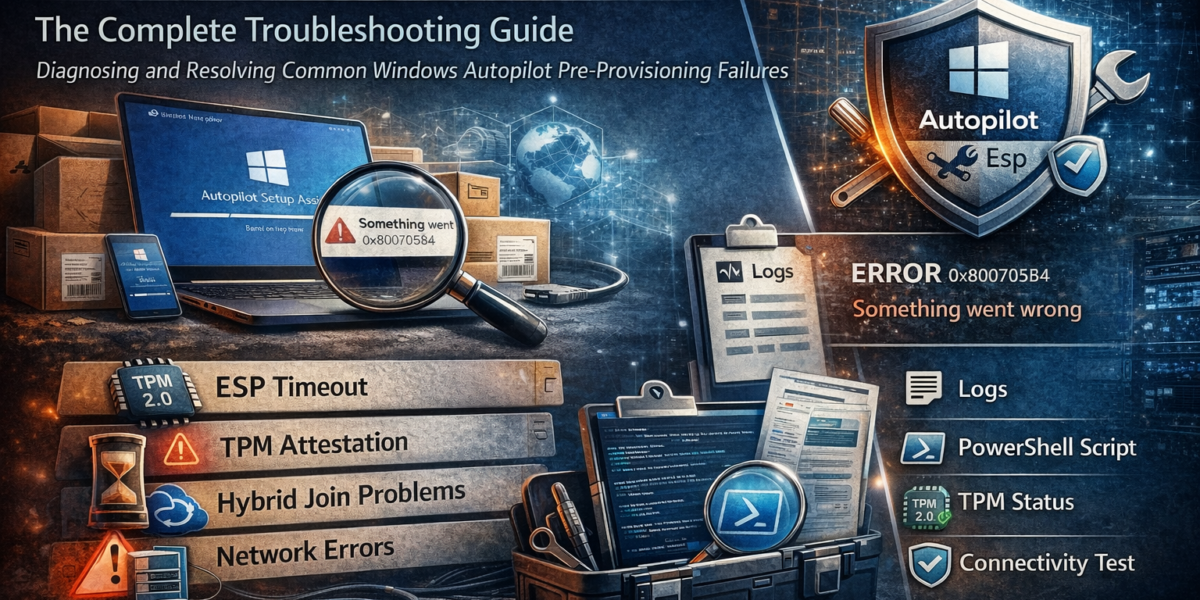
In this article
- What is pre-provisioning (white glove)?
- How the process works under the hood
- Prerequisites checklist
- Common failures and how to fix them
- Collecting and reading diagnostic logs
- ESP timeout deep dive
- TPM attestation failures
- Hybrid Azure AD join issues
- Network and proxy pitfalls
- Get-AutopilotDiagnosticsCommunity
- Final pre-flight checklist
1. What is pre-provisioning?
Pre-provisioning (formerly known as white glove) allows IT teams or hardware vendors to fully configure a Windows device before the end user ever touches it. The device goes through Autopilot enrollment, installs all required apps, applies all policies and reaches a ready-to-use state — all without any user interaction.
The benefit is obvious: the user opens the laptop lid, signs in, and everything is already there. No waiting for apps to install. No “please wait while we set up your device” spinning for 45 minutes. The challenge? When pre-provisioning fails, it can be incredibly frustrating to diagnose because the error messages are often vague and the logs are buried deep.
2. How the process works under the hood
Understanding the flow is essential for troubleshooting. Pre-provisioning runs through these phases in order:
TPM attestation
The device proves its identity to the Autopilot service using the TPM chip. A hardware hash is matched against the registered device in your tenant.
Entra ID join (or hybrid join)
The device registers in Entra ID. For hybrid scenarios, the Intune Connector creates a computer object in on-premises AD and the device waits for the sync to complete.
MDM enrollment
The device enrolls in Intune and receives its management profile.
Device ESP — policies and apps
The Enrollment Status Page tracks the installation of all device-targeted policies, certificates, network profiles and required Win32/LOB apps.
Reseal
The device reseals back to the OOBE screen. The technician presses the power button and the device is ready for the user.
Key insight: Pre-provisioning only runs the device ESP phase. The user ESP (user-targeted apps and policies) runs after the end user signs in. If you are assigning apps in user context, they will not install during pre-provisioning — this is by design, not a bug.
3. Prerequisites checklist
Before you even start troubleshooting a failure, verify that these are all in place. Missing one of these is the root cause in the majority of cases I see:
4. Common failures and how to fix them
Here is a quick-reference table of the failures I encounter most often. Detailed walkthroughs for the trickiest ones follow in dedicated sections below.
| Symptom | Likely cause | Fix |
|---|---|---|
Red screen — “Something went wrong” with error 0x800705B4 |
ESP timeout (default 60 min) | Reduce required apps or increase timeout. See ESP deep dive |
| Red screen — TPM attestation failed | TPM firmware outdated, hardware hash mismatch, or TPM not cleared | See TPM section |
| Stuck at “Joining your organization’s network” | Hybrid AD join — Intune Connector issue or Entra Connect sync delay | See Hybrid join section |
| ESP shows “Identifying” for 10+ minutes | Device not recognized by Autopilot service — hash not imported or profile not assigned | Re-import hash, wait for profile assignment, verify in Intune portal |
| App installation fails during ESP | Win32 app dependency issue, download failure or detection rule mismatch | Check IME logs, verify detection rules, test app install manually |
Error 0x81036502 |
Device not found in Autopilot service | Verify hardware hash is uploaded and synced. Deregister and re-register if needed |
5. Collecting and reading diagnostic logs
When pre-provisioning fails and you are staring at a red screen, your first move should be collecting logs. Press Shift + F10 during the ESP to open a command prompt, then run:
# Collect Autopilot diagnostics (Windows 11)
mdmdiagnosticstool -area Autopilot -cab C:\temp\autopilot-diag.cab

# Alternative: collect full MDM diagnostics
mdmdiagnosticstool -out C:\temp\mdm-diag

# Export event logs for Autopilot and enrollment
wevtutil epl Microsoft-Windows-Provisioning-Diagnostics-Provider/AutoPilot C:\temp\autopilot-events.evtx
wevtutil epl Microsoft-Windows-DeviceManagement-Enterprise-Diagnostics-Provider/Admin C:\temp\mdm-events.evtx
The key log files to look at inside the diagnostic cab:
-
TpmHliInfo_Output.txt— TPM health and attestation status. Check for readiness and endorsement key issues -
DiagnosticLogCSP_Collector_Autopilot_*— the ETL traces that contain the actual enrollment flow and where it broke -
MdmDiagReport_RegistryDump.reg— contains the ESP tracking state, enrolled policies, and applied configurations -
IntuneManagementExtension.log— located inC:\ProgramData\Microsoft\IntuneManagementExtension\Logs. Essential for tracking Win32 app installations
6. ESP timeout deep dive
The Enrollment Status Page is where most pre-provisioning failures surface. The ESP tracks three categories during the device phase: security policies, certificate profiles, and apps. If any tracked item fails to install within the timeout window, the whole process fails.
Common trap: If you have a Win32 app marked as required and assigned to a device group, but the app’s detection rule does not match after installation, the ESP will keep retrying until timeout. Always verify detection rules match the actual installed state.
Strategies to reduce ESP timeouts:
- Minimize tracked apps — only mark apps as required if they truly need to be installed before first login. Move non-critical apps to the user ESP or assign them as available.
- Use app dependencies wisely — chain apps in the correct dependency order. Circular dependencies will cause deadlocks.
- Pre-cache content — for large apps (like Microsoft 365 Apps), consider using Delivery Optimization or a connected cache server to avoid slow downloads.
- Increase the timeout — the default ESP timeout is 60 minutes. For environments with many required apps, bumping this to 90 or 120 minutes can help — but it is a band-aid, not a solution.
To check which specific app or policy is blocking the ESP, run this from the command prompt during the stuck screen:
# Check ESP tracking state in the registry
reg query "HKLM\SOFTWARE\Microsoft\Enrollments" /s | findstr "EnrollmentState"

# Check which policies/apps are still being tracked
reg query "HKLM\SOFTWARE\Microsoft\Windows\Autopilot\EnrollmentStatusTracking" /s
7. TPM attestation failures
TPM attestation happens right at the start of pre-provisioning. If it fails, you never even get to the ESP. The device shows a red error screen almost immediately after pressing the Windows key five times to enter pre-provisioning mode.
Important: TPM attestation is required for pre-provisioning. Unlike regular (user-driven) Autopilot, you cannot skip this step. The device must have a TPM 2.0 chip that the Autopilot service can verify.
Common causes and fixes:
- TPM firmware outdated — some manufacturers ship with old TPM firmware that does not support attestation. Update via BIOS/UEFI or the manufacturer’s firmware update tool. This is especially common on Lenovo and HP devices.
-
TPM not cleared — if the device was previously enrolled or used, the TPM may hold old keys. Clear the TPM in BIOS or via
tpm.mscand re-run provisioning. - Hardware hash mismatch — if you replaced a motherboard or TPM module, the hardware hash has changed. Delete the old Autopilot device record and re-import the new hash.
-
Network blocking attestation — the device needs to reach
ztd.dds.microsoft.comand several other endpoints. Firewalls or proxies often block these. See the network section.
Quick TPM health check from a command prompt:
# Check TPM status
Get-Tpm | Format-List

# Verify TPM is ready for attestation
Confirm-SecureBootUEFI
Get-TpmEndorsementKeyInfo -Hash SHA256
8. Hybrid Azure AD join issues
Hybrid join adds a whole extra layer of complexity. The device needs to join both on-premises Active Directory and Entra ID. This requires the Intune Connector for Active Directory to be installed on a server that can reach a domain controller.
The most frequent hybrid join problems:
-
Intune Connector service not running — check
services.mscon the connector server for the “Intune Connector” service. Restart it and check the event log underApplication and Services > Microsoft > Intune > ODJConnectorSvc. -
OU permissions — the connector service account needs permission to create computer objects in the target OU. This is the single most common hybrid join failure. Verify with
dsaclsor the AD delegation wizard. - Entra Connect sync delay — after the connector creates the AD computer object, Entra Connect needs to sync it to Entra ID. If your sync cycle is 30 minutes, the device sits waiting. Consider triggering a delta sync manually or reducing the sync interval.
- Domain profile not found — the Autopilot profile must specify the correct domain and OU. Double-check the domain join configuration in your deployment profile.
Pro tip: If you are deploying new environments, seriously consider going cloud-native (Entra ID join only) and skipping hybrid join entirely. It removes an entire category of failure points and is the direction Microsoft is pushing.
9. Network and proxy pitfalls
Network issues are the silent killer of Autopilot deployments. The device needs access to a long list of Microsoft endpoints during provisioning. Corporate networks with aggressive firewalls or proxy servers frequently break one or more of these connections.
Critical endpoints that must be reachable:
| Endpoint | Purpose |
|---|---|
ztd.dds.microsoft.com | Autopilot deployment service |
cs.dds.microsoft.com | Autopilot deployment service |
login.microsoftonline.com | Entra ID authentication |
enterpriseregistration.windows.net | Entra ID device registration |
enrollment.manage.microsoft.com | Intune MDM enrollment |
*.dl.delivery.mp.microsoft.com | Windows Update & app content delivery |
ekop.intel.com / ekcert.spserv.microsoft.com | TPM attestation (manufacturer-dependent) |
SSL inspection: Many enterprise proxies perform SSL inspection. This breaks certificate pinning for several Microsoft services. If you are using SSL inspection, you must exclude all *.microsoft.com and *.windows.net endpoints from inspection. This is the most common network-related pre-provisioning failure I see.
Quick connectivity test from the OOBE command prompt:
# Test critical endpoints
Test-NetConnection ztd.dds.microsoft.com -Port 443
Test-NetConnection login.microsoftonline.com -Port 443
Test-NetConnection enrollment.manage.microsoft.com -Port 443

# Check if a proxy is configured
netsh winhttp show proxy
10. Get-AutopilotDiagnosticsCommunity
If you have ever tried to make sense of raw Autopilot logs and registry dumps, you know it is not a fun experience. That is exactly why the Get-AutopilotDiagnosticsCommunity script exists — a community-maintained PowerShell script published on the PowerShell Gallery.
The script is a successor to Michael Niehaus’s original Get-AutopilotDiagnostics and has been expanded with additional checks, better output formatting and support for the latest Autopilot and ESP changes. It is the single most useful tool in my troubleshooting toolkit and the first thing I run when a pre-provisioning attempt fails.
Installation
# Install from the PowerShell Gallery
Install-Script -Name Get-AutopilotDiagnosticsCommunity -Force

# Run the script
Get-AutopilotDiagnosticsCommunity

# Run with -Online to resolve app names, policy names, etc. from Graph API
# Without this flag you only see GUIDs — with it you get human-readable names
Get-AutopilotDiagnosticsCommunity -Online

# Combine with -Verbose for maximum detail
Get-AutopilotDiagnosticsCommunity -Online -Verbose
What it does
Instead of manually digging through registry keys, event logs and MDM diagnostic files, this script does the heavy lifting for you. Here is what it covers:
- Autopilot profile details — shows the assigned profile, deployment mode, join type and whether pre-provisioning is enabled.
- ESP status breakdown — lists every tracked policy, app and certificate with its current installation state. Instantly tells you what is blocking the ESP.
- App installation status — for each tracked Win32 and LOB app, it shows whether it downloaded, installed and passed detection — including error codes if it failed.
- Policy processing — shows configuration profiles, compliance policies and their delivery status.
- Timeline of events — a chronological overview of the enrollment flow, making it easy to spot where things went wrong and how long each step took.
Pro tip: You can run this script during a stuck ESP by pressing Shift + F10 to open a command prompt. It works in both OOBE and desktop context, and gives you a clear, readable summary instead of having to parse raw logs. Save yourself 30 minutes of digging — run this first.
11. Final pre-flight checklist
Before kicking off pre-provisioning, run through this list. It takes two minutes and saves hours of troubleshooting:
Autopilot pre-provisioning is powerful when it works — and painful when it does not. The key to success is a solid checklist, knowing where to find the right logs, and understanding the flow well enough to pinpoint where the process broke down. If you are still stuck after going through everything above, feel free to reach out on LinkedIn — happy to help.